

Step 1
Get your QR code
Use the QR code for your booking link and save it as an image. If you don't have one yet, ask Aptly Care support for it.
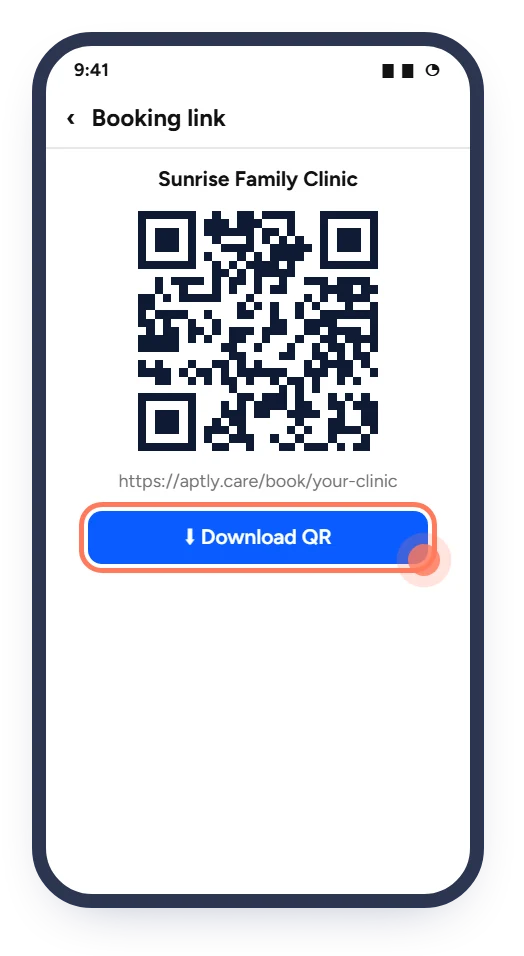
Patients waiting at the clinic can scan the code with their phone camera and book their next visit, or a family member's, in under a minute.
You need: the QR code for your booking link and a printer (A5 or A4) · Time: about 10 minutes plus printing
The images below are simplified illustrations. The QR codes shown are samples and cannot be scanned.
Use the QR code for your booking link and save it as an image. If you don't have one yet, ask Aptly Care support for it.
Put the QR code on an A5 or A4 sheet with your clinic name, a short line like "Book your next visit online", and the link in text below it.
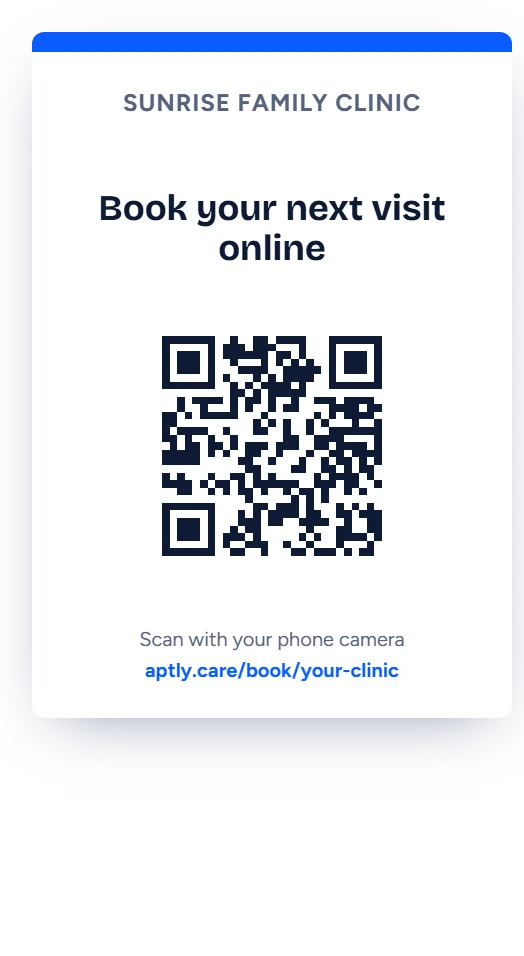
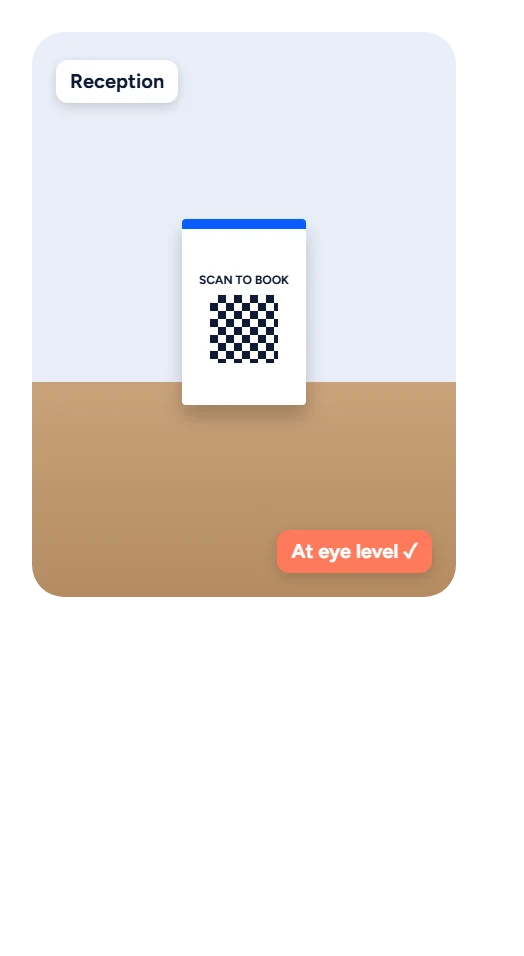
Use a standee on the reception counter. Add copies at the billing desk and on the waiting area wall.
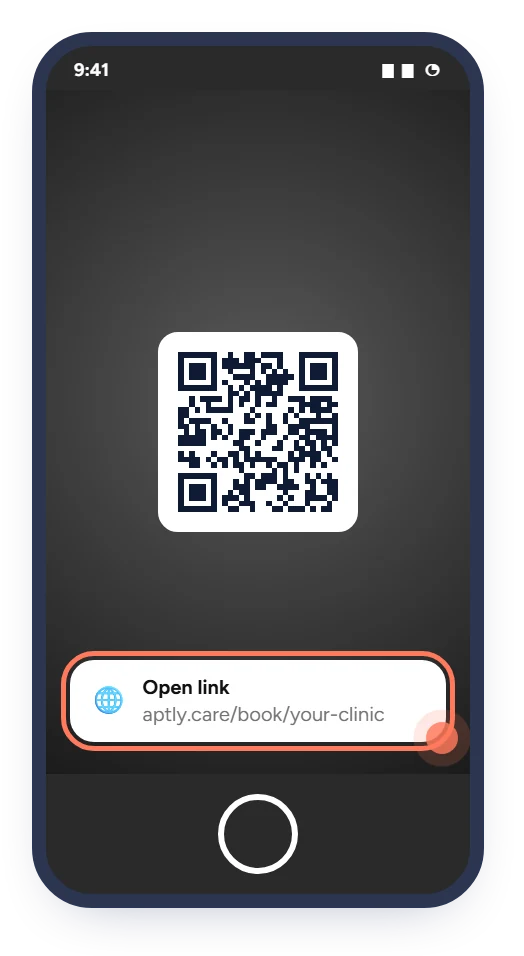
Point an iPhone camera and an Android camera at the printed sheet. Tap the link that pops up and check that your booking page opens.
Make the Website button on Google Search and Maps open your booking page.
Read the guide 2 minAdd your booking link to your bio, posts, reels and stories.
Read the guide 3 minPut the link in your WhatsApp Business profile, chats and Status, and on Facebook and more.
Read the guideHealthcare, Connected.
Ask Aptly Care support and we will help you get set up.