

Step 1
Search for your clinic name
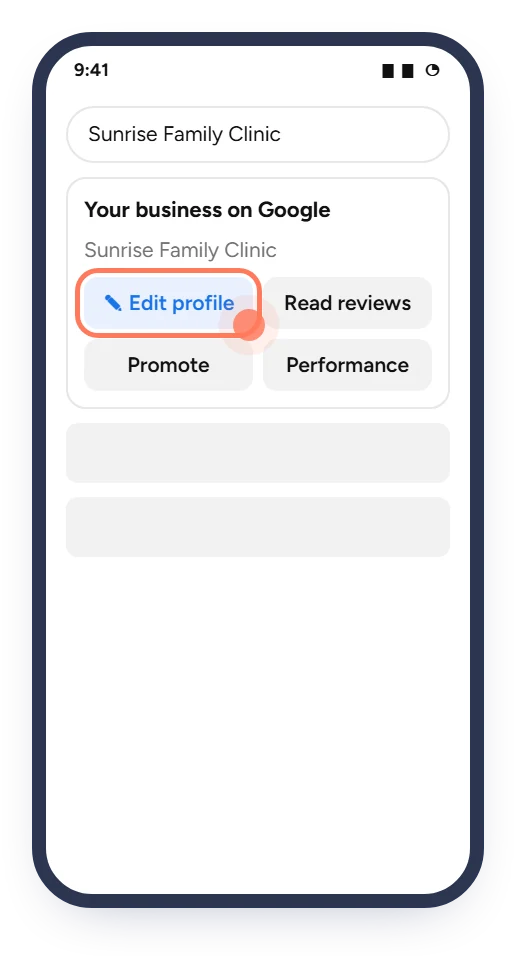
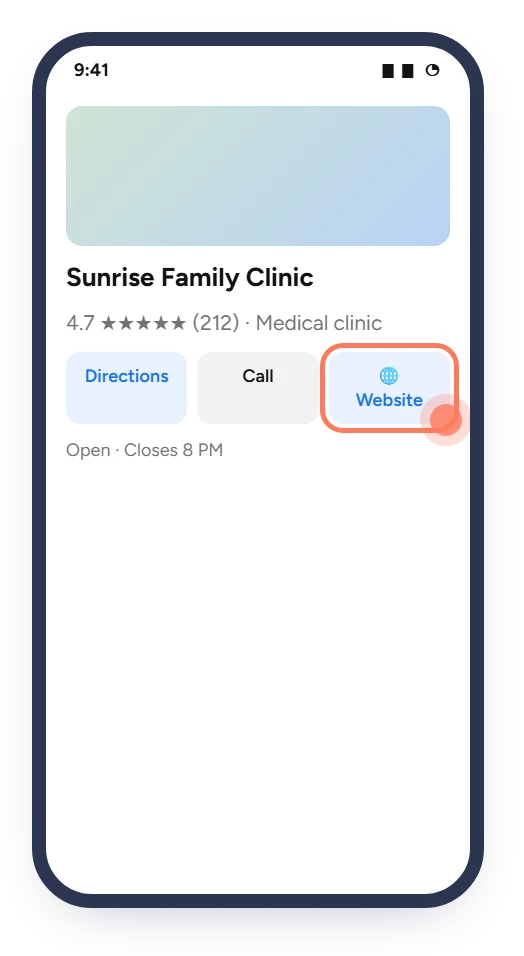
While signed in to Google, search for your clinic's name. Your profile panel appears. Tap Edit profile.
When patients search for your clinic on Google or Google Maps, the Website button is one of the first things they tap. Point it at your booking page.
You need: the Google account that manages your clinic's profile and your booking link · Time: about 3 minutes
The screens below are simplified illustrations. Button names and positions can change slightly between versions. The ringed spot on each screen is what you tap.
While signed in to Google, search for your clinic's name. Your profile panel appears. Tap Edit profile.
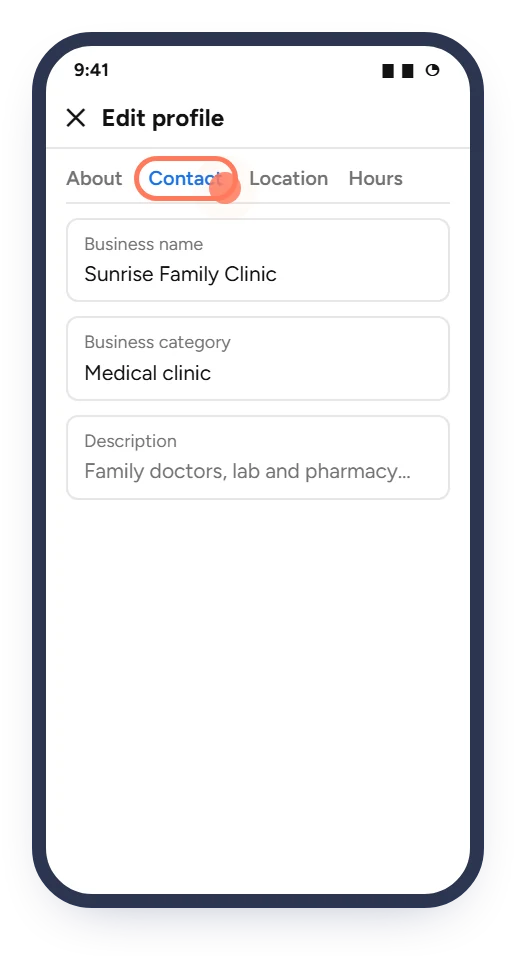
In the edit window, switch to the Contact tab. On a computer, it may be under Business information.
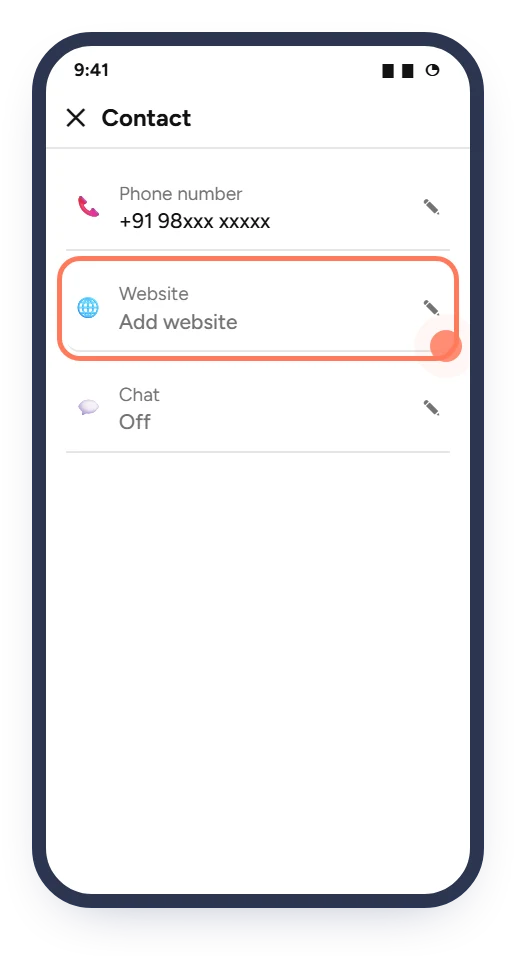
Tap the pencil next to Website. If an old website is there, you will replace it.
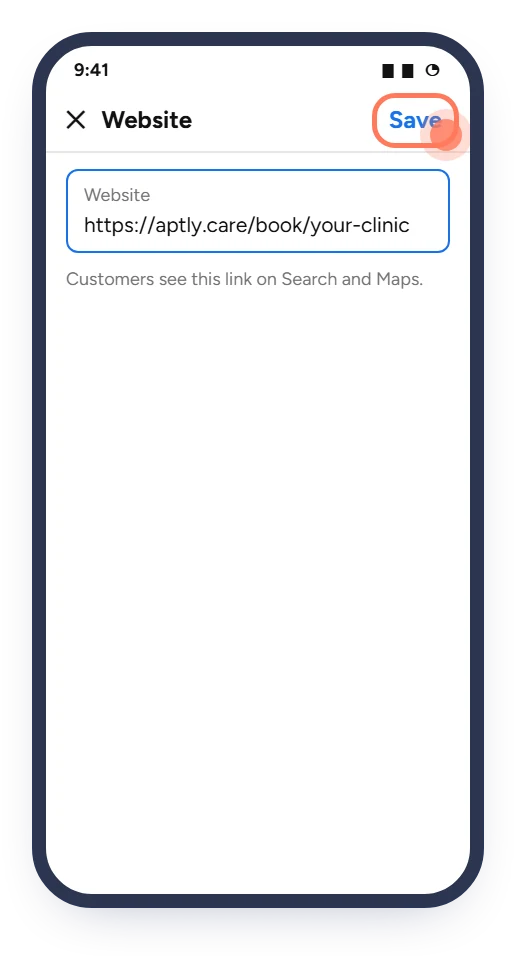
Delete the old address, paste your booking link and tap Save.
Google may review the change first, so it can take a little while to show. Then tap Website on your profile to test it.
Add your booking link to your bio, posts, reels and stories.
Read the guide 3 minPut the link in your WhatsApp Business profile, chats and Status, and on Facebook and more.
Read the guide 10 minPrint your booking QR code so patients can book their next visit from the waiting area.
Read the guideHealthcare, Connected.
Ask Aptly Care support and we will help you get set up.